

How to set the rotation of photos on a digital picture frame?
As a seasoned digital picture frame supplier, I've encountered numerous inquiries from customers regarding the proper way to set the rotation of photos on these devices. This seemingly simple task can sometimes pose challenges, especially for those new to digital picture frames. In this blog post, I'll guide you through the process, ensuring you can effortlessly customize your photo display to suit your preferences.
Understanding the Basics of Photo Rotation
Before delving into the step-by-step guide, it's essential to understand why photo rotation is necessary. Digital cameras and smartphones capture images in various orientations, including portrait, landscape, and even upside-down. When transferring these photos to a digital picture frame, you may find that some images appear sideways or upside-down, disrupting the visual flow. By setting the rotation, you can correct these orientations and ensure that all your photos are displayed correctly.
Step-by-Step Guide to Setting Photo Rotation
The process of setting photo rotation may vary depending on the specific model of your digital picture frame. However, most frames follow a similar set of steps. Here's a general guide to help you get started:

- Power On Your Digital Picture Frame: Ensure that your digital picture frame is connected to a power source and turned on. Wait for the device to boot up and display the home screen.
- Navigate to the Photo Menu: Use the navigation buttons or remote control to access the photo menu on your digital picture frame. This menu typically contains options for viewing, managing, and editing your photos.
- Select the Photo You Want to Rotate: Scroll through the photo gallery and select the image you wish to rotate. You can use the arrow keys or touch screen to navigate through the photos.
- Access the Rotation Function: Once you've selected the photo, look for the rotation function in the photo menu. This function is usually represented by an icon of a circular arrow or a rotate button.
- Rotate the Photo: Press the rotation button or use the arrow keys to rotate the photo in the desired direction. Most digital picture frames allow you to rotate photos in 90-degree increments, either clockwise or counterclockwise.
- Save the Changes: After rotating the photo to your satisfaction, save the changes by pressing the save or confirm button. The rotated photo will now be displayed in the corrected orientation.
Tips for Rotating Multiple Photos
If you have multiple photos that need to be rotated, you can save time by using the batch rotation feature available on some digital picture frames. Here's how you can do it:
- Select Multiple Photos: Use the multi-select function on your digital picture frame to select all the photos you want to rotate. You can usually do this by pressing and holding the select button while selecting each photo.
- Access the Batch Rotation Function: Once you've selected all the photos, look for the batch rotation function in the photo menu. This function allows you to rotate multiple photos at once.
- Choose the Rotation Direction: Select the rotation direction (clockwise or counterclockwise) and the number of degrees you want to rotate the photos.
- Apply the Rotation: Press the apply or confirm button to apply the rotation to all the selected photos. The digital picture frame will automatically rotate each photo and save the changes.
Troubleshooting Common Rotation Issues
Despite following the steps outlined above, you may encounter some issues when setting the rotation of photos on your digital picture frame. Here are some common problems and their solutions:
- Photo Not Rotating: If the photo doesn't rotate when you press the rotation button, make sure that the rotation function is enabled in the settings menu. Some digital picture frames have a lock feature that prevents accidental rotation.
- Rotation Not Saving: If the rotated photo doesn't save the changes, try restarting the digital picture frame and repeating the rotation process. If the problem persists, check if there is enough storage space on the device or if the photo file is corrupted.
- Incorrect Rotation Angle: If the photo rotates at an incorrect angle, make sure that you're using the correct rotation function. Some digital picture frames have a flip function that flips the photo horizontally or vertically instead of rotating it.
Exploring Advanced Rotation Features
In addition to the basic rotation function, some digital picture frames offer advanced features that allow you to customize the rotation settings further. Here are some examples:
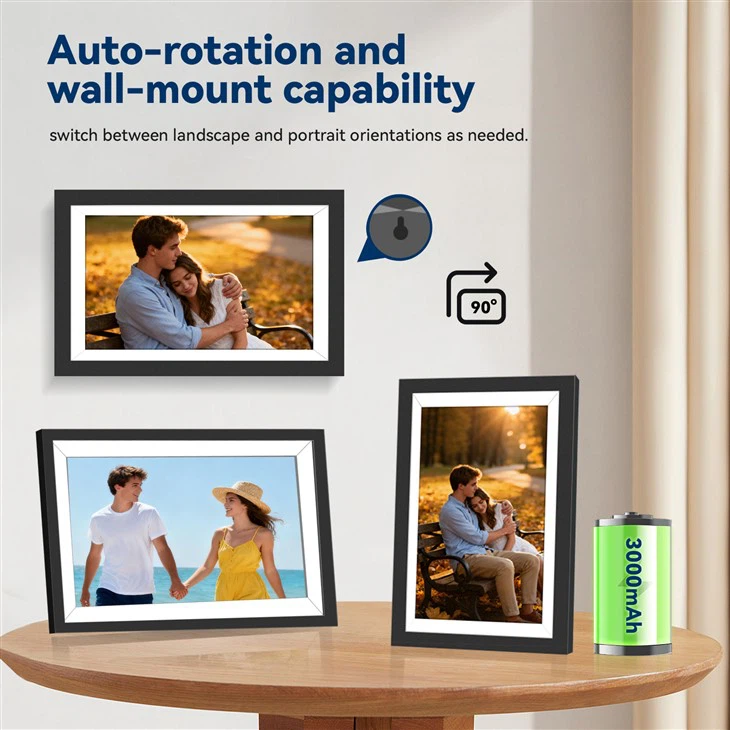
- Auto-Rotation: Some digital picture frames have an auto-rotation feature that automatically detects the orientation of the device and rotates the photos accordingly. This feature is useful if you plan to display the digital picture frame in different positions.
- Random Rotation: Some digital picture frames allow you to set the photos to rotate randomly, adding a dynamic and unpredictable element to your photo display.
- Continuous Rotation: Some digital picture frames offer a continuous rotation feature that rotates the photos continuously, creating a slideshow effect. You can adjust the rotation speed and direction to suit your preferences.
Conclusion
Setting the rotation of photos on a digital picture frame is a simple yet essential task that can enhance the visual appeal of your photo display. By following the steps outlined in this blog post, you can easily rotate your photos to the correct orientation and customize the rotation settings to suit your preferences. Whether you're a novice or an experienced user, I hope this guide has been helpful. If you have any further questions or need assistance, please don't hesitate to contact us. We're here to help you make the most of your digital picture frame.
If you're interested in purchasing a digital picture frame, we offer a wide range of models to choose from, including the 15.6-Inch WiFi Digital Picture Frame, the 7-Inch Digital Photo Frame with Remote, and the 10.1 Inch WiFi Digital Photo Frame Rechargeable. Our digital picture frames are designed to provide high-quality photo display and user-friendly features. Contact us today to discuss your requirements and explore our product range.
References
- Manufacturer's user manuals for digital picture frames.
- Online resources and forums dedicated to digital picture frames.