

How to fix a smart TV with no sound?
Hey there! I'm a supplier of smart TVs, and I know how frustrating it can be when your TV suddenly loses sound. It's like watching a movie with the mute button on all the time. But don't worry, I've got some tips and tricks to help you fix a smart TV with no sound. Let's dive right in!
Check the Basics
First things first, you need to make sure that the problem isn't something super simple. Start by checking the volume settings on your TV. Sometimes, you might have accidentally turned the volume all the way down or muted the TV. Use your TV remote to increase the volume and make sure it's not on mute. You can also try using the volume buttons on the TV itself, just in case there's an issue with the remote.
Another basic thing to check is the audio output settings. Your TV might be set to output audio to a different device, like a soundbar or headphones. Go to the audio settings on your TV and make sure the correct audio output is selected. If you're using external speakers or a soundbar, check the connections to make sure they're secure.
Inspect the Cables
Loose or damaged cables can often cause sound problems. Check all the cables connected to your TV, including the HDMI, optical, and audio cables. Make sure they're plugged in properly and there are no visible signs of damage. If you find a damaged cable, replace it with a new one.
If you're using an HDMI cable, try switching to a different HDMI port on your TV. Sometimes, a particular port might be malfunctioning. Also, make sure the HDMI cable is compatible with your TV and the connected device.
Update the TV Software
Outdated software can sometimes cause issues with the sound on your smart TV. Check if there are any software updates available for your TV. Most smart TVs have an option to check for updates in the settings menu. If an update is available, download and install it. This can often fix bugs and glitches that might be causing the sound problem.
Reset the TV
If all else fails, you can try resetting your TV to its factory settings. This will erase all your personal settings and data, so make sure you back up any important information before doing this. To reset your TV, go to the settings menu and look for the "Reset" or "Factory Reset" option. Follow the on-screen instructions to complete the reset process.
After the reset, set up your TV again and check if the sound problem is resolved. Sometimes, a simple reset can fix a lot of issues.
Check the Connected Devices
If you're using external devices, like a gaming console or a streaming device, they might be the cause of the sound problem. Try connecting the device to a different TV or monitor to see if the sound works. If it doesn't, there might be an issue with the device itself. You can try resetting the device or updating its software.
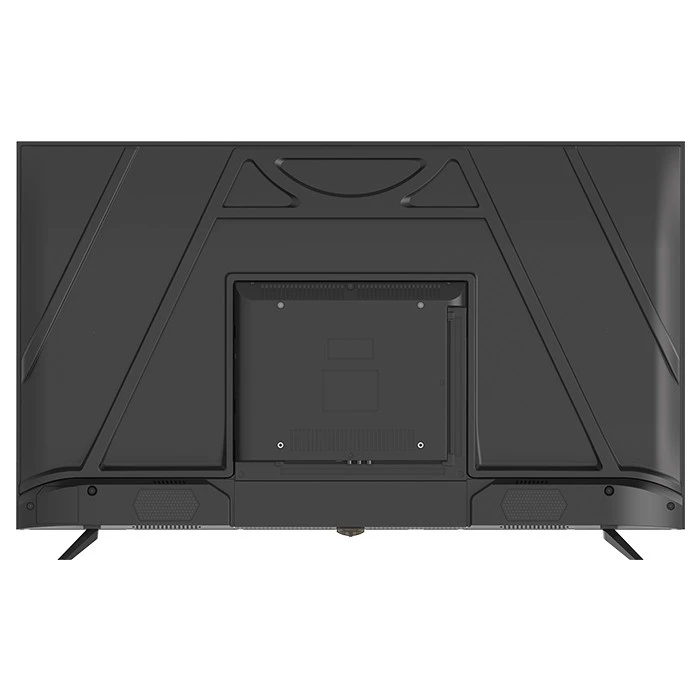
Consider Hardware Issues
If none of the above steps work, there might be a hardware problem with your TV. In this case, it's best to contact the manufacturer's customer support or a professional TV repair service. They can diagnose the problem and provide a solution.
Our Smart TV Offerings
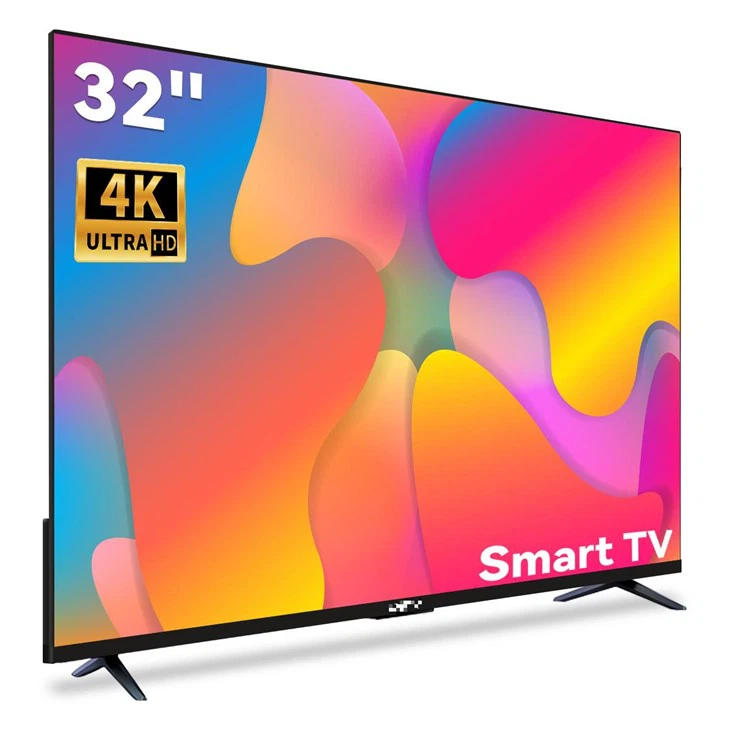
As a smart TV supplier, we offer a wide range of high-quality smart TVs at competitive prices. Check out our 32 Inch Smart Android TV Factory Price for a great option for smaller spaces. If you're looking for a larger screen, our Rovesky 43 Inch Smart Android TV offers a great viewing experience. And for the ultimate in-home entertainment, our 85 Inch 4K AI Smart TV Manufacturer is a top-of-the-line option.
If you're interested in purchasing our smart TVs or have any questions, feel free to reach out to us for a procurement discussion. We're here to help you find the perfect TV for your needs.
References
- General knowledge and experience in the smart TV industry.
- Manufacturer's manuals and support resources for various smart TV models.