

How do I use the drawing tools on a smart board for the office?
Hey there! I'm part of a supplier team for smart boards designed specifically for offices. Smart boards have become a game - changer in the modern office environment, offering a dynamic and interactive way to communicate, collaborate, and present. One of the most fun and useful features of these smart boards is the drawing tools. In this blog, I'll share with you how I use the drawing tools on a smart board for the office.
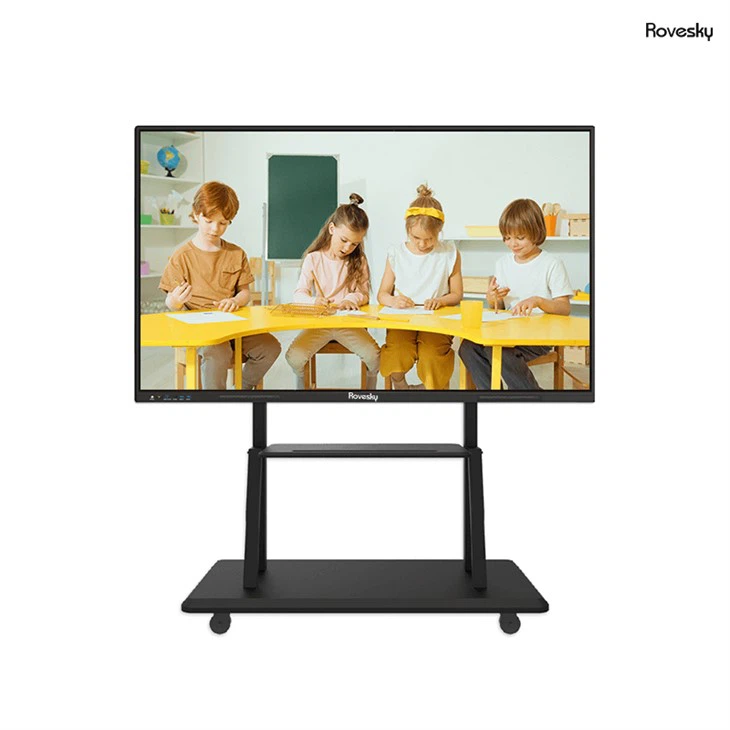
First things first, let's talk about the basics. When you first turn on the Rovesky 55 - Inch 4K Smart Digital Whiteboard, accessing the drawing tools is usually a breeze. Most smart boards have an icon on the side or bottom of the screen that you can click to open up the drawing menu. Once you've opened it, you'll see a variety of options at your fingertips.
The pen tool is probably the most commonly used drawing tool. It's just like using a real pen on a whiteboard, but with a lot more flexibility. You can choose from different pen sizes, which is super handy. For example, if you're writing down a quick note or a small diagram, a thin pen size works great. But if you're making a big, bold point or highlighting something important, a thicker pen size will do the trick. You can also change the color of the pen. I usually keep a few bright colors on hand, like red, blue, and green. Red is great for drawing attention to urgent matters, blue is perfect for regular text, and green can be used for highlighting positive aspects or solutions.
Another cool feature of the pen tool is the ability to adjust the transparency. This can be really useful when you're layering different drawings or notes on top of each other. For instance, if you're creating a mind - map and you want to show the relationships between different ideas, you can use semi - transparent lines to connect them. It gives a more professional and organized look to your work.
The highlighter tool is also a must - have. It works just like a real highlighter in that it marks text or areas without covering them completely. You can use it to highlight key points in a presentation, important data in a spreadsheet, or even parts of an image. Just like the pen tool, you can change the color and size of the highlighter. I like to use a bright yellow highlighter for most things, as it really stands out on the screen.
The eraser tool is, of course, essential. If you make a mistake or want to clear some space on the board, the eraser is your friend. There are usually different eraser sizes available. A small eraser is good for correcting small errors, while a large eraser can quickly clear a big area. Some smart boards even have a "magic eraser" feature. This allows you to erase specific colors or types of objects. For example, if you've drawn a bunch of red lines and you want to get rid of them all at once, the magic eraser can do that for you.
Now, let's talk about how these drawing tools can be used in different office scenarios.
Presentations
When giving a presentation, the drawing tools can take your content to the next level. Instead of just showing static slides, you can draw on the slides in real - time. For example, if you're presenting a sales report and you want to highlight the areas of growth, you can use the pen to draw arrows and circles around the relevant data. You can also use the highlighter to mark important numbers or trends. This makes your presentation more engaging and helps your audience focus on the key points.
Brainstorming Sessions
Brainstorming is all about generating ideas freely. The drawing tools on a smart board are perfect for this. You can start by writing down a central idea in the middle of the board. Then, use the pen to draw lines and connect related ideas. You can create mind - maps, flowcharts, or just jot down random thoughts. The ability to change colors and sizes makes it easy to distinguish between different types of ideas. For example, you can use one color for new ideas, another for existing concepts, and a third for potential solutions.
Team Meetings
In team meetings, the drawing tools can facilitate better communication. Let's say you're discussing a project plan. You can draw a timeline on the board, mark important milestones with different colors, and use arrows to show the flow of tasks. Team members can then add their own thoughts and suggestions directly on the board using the drawing tools. This creates a more collaborative environment and ensures that everyone is on the same page.

Training Sessions
When conducting training sessions, the drawing tools can be used to explain complex concepts. For example, if you're teaching a software application, you can draw on the screen to show different features and how they work. You can use the highlighter to point out important buttons or fields. This visual aid makes it easier for trainees to understand and remember the information.
Document Review
During document review sessions, the drawing tools can be very helpful. You can use the pen to mark up documents, add comments, and highlight areas that need attention. The ability to save these markings means that you can easily share them with other team members for further discussion.
One of the great things about the drawing tools on a smart board is the ability to save and share your work. Most smart boards allow you to save your drawings as images or PDFs. You can then share these files via email, messaging apps, or through your company's cloud storage. This makes it easy to keep a record of your work and share it with colleagues who couldn't attend the meeting.
Another useful feature is the ability to undo and redo actions. If you make a mistake while drawing, you don't have to start all over again. You can simply click the undo button to go back a step. And if you accidentally undo something you didn't mean to, the redo button will bring it back.
In conclusion, the drawing tools on a smart board for the office are incredibly versatile and can be used in a wide range of scenarios. Whether you're presenting, brainstorming, or collaborating, these tools can enhance your communication and make your work more efficient.
If you're interested in getting a smart board for your office or learning more about the features and how they can benefit your business, we'd love to talk to you. Feel free to reach out to us for a detailed discussion about your requirements and how our smart boards can meet them. We're here to help you make the most of this amazing technology in your office environment.
References
- General knowledge about smart board features and office use cases.
- Product specifications of the Rovesky 55 - Inch 4K Smart Digital Whiteboard.