

How To Use Digital Picture Frame
Jan 23, 2025

A digital picture frame is a great way to display your cherished memories without the need for printed photos. It's perfect for home decor, gifts, or even professional settings. If you've just purchased one, follow this guide to get started
Introduce the Uhale Digital Picture Frame
Uhale Frame displays wonderful moments shared by mobile devices. Touch-screen operation is easy to use, making sharing photos and videos smoother and more convenient
1: Download the Uhale App


Download the App by scanning the QR code
Find the Uhale App on
Android: Search for "Uhale" on Google Play
iOS: Search for "Uhale" on the App Store
How to use Uhale Digital Picture Frame
When starting your frame for the first time, you will need to setup the frame.
Uhale Frame may request to upgrade to the latest version. If so, it is recommended to upgrade the photo frame before proceeding
1: Choose a language you prefer as default
2: Connect the photo frame to the Internet via Wi-Fi
3: Set the date, time and set the time zone if needed
4: Name the photo frame (Eg Jack's Frame)
5: Set the location of the photo frame (Eg Living Room, Kitchen, Office)
6: Check the quick guide on the Uhale frame
How to Share Photos
You can share photos/videos in five ways
Connecting A New friend
Ensure your frame is properly connected to the network and your mobile phone has downloaded and installed the Uhale App.
Click the "Add friend" icon on your frame . A dialog will appear and show both QR code and paring code (valid for 48 hours).
Now share either the QR code or the paring code through your preferred way Eg: SMS, E-Mail, IM, phone call, to your friend
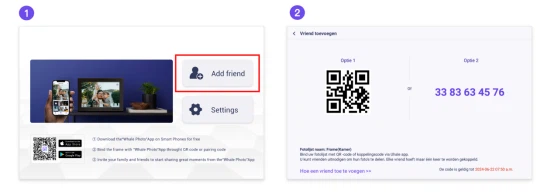
Open Uhale App click the frame tag either scan the Digital Picture Frame QR code or enter the pairing code to add the frame

Once the frame is connected to your "Uhale App" you will be able to find them in " Manage Account" on the frame
Uhale web
You can visit Uhale Web for sharing at: https:// uhale .zeasn.tv
Note: If registered on Uhale App log in with credentials or scan the web QR code. Unregistered users can log in as guests
How to Transfer From Your PC (Computure)
Through a USB data cable you can easily transfer photos and videos from your computer to a digital photo frame. enabling convenient local storage and sharing
Path: Photo frame - Settings - Manage photos - PC transfer
External storage (SD card)
You can copy photos and videos to SD card and then insert the SD card into the frame and import photos to the frame through
Path: Frame – Settings – Manage Photos – Import Photos .
Direct Playback Of Photos From External Storage (SD card)
You can play photos and videos directly from external devices without importing
How to hide Info on Your Home Screen Quick Tips


