

How to share content on a smart board?
Sharing content on a smart board can be a game - changer for businesses, schools, and any group that needs to collaborate effectively. As a smart board supplier, I've seen firsthand how these devices can transform the way we present and interact with information. In this blog, I'll walk you through the ins and outs of sharing content on a smart board, so you can make the most of this powerful tool.
Understanding Your Smart Board
First things first, it's important to understand the capabilities of your smart board. There are different types and sizes available, like our Supplier 75 - Inch 4K Touchscreen Smart Whiteboard and 86 - Inch 4K Interactive Smart Whiteboard Supplier. These smart boards come with features such as touch - screen functionality, high - resolution displays, and the ability to connect to various devices.
Most smart boards support multiple input methods, including USB, HDMI, and wireless connections. This means you can connect your laptop, tablet, or smartphone to the smart board and share content easily. Some smart boards also have built - in software that allows you to annotate, draw, and manipulate the shared content in real - time.
Preparing Your Content
Before you start sharing content on the smart board, you need to make sure your content is ready. This includes organizing your files, checking the formatting, and ensuring that all the necessary software and drivers are installed on your device.
If you're sharing a presentation, make sure it's in a compatible format, such as PowerPoint or PDF. You can also convert your files to other formats if needed. It's a good idea to test your presentation on the smart board beforehand to make sure everything looks and works as expected.
For videos and images, check the file size and resolution. Large files may take longer to load, and low - resolution content may not look good on the high - definition smart board display. You can compress your files or use cloud - based storage services to make sharing easier.
Connecting Your Device
Once your content is ready, it's time to connect your device to the smart board. The most common way to do this is through an HDMI cable. Simply plug one end of the cable into your device's HDMI port and the other end into the smart board's HDMI input.
If your device doesn't have an HDMI port, you can use an adapter. For example, if you have a Macbook, you can use a Thunderbolt to HDMI adapter. Some smart boards also support wireless connections, such as Wi - Fi or Bluetooth. To connect wirelessly, you'll need to enable the wireless sharing feature on both your device and the smart board and follow the on - screen instructions.
Sharing Your Content
After connecting your device, you should see your device's screen mirrored on the smart board. You can now start sharing your content. If you're using a presentation, open the file and start the slideshow. You can use the smart board's touch - screen functionality to navigate through the slides, annotate the content, and interact with the audience.
For videos and images, open the file and play it. You can use the smart board's controls to pause, play, and adjust the volume. Some smart boards also allow you to zoom in and out of the content, which can be useful for showing details.
If you're sharing a web page, open your browser and navigate to the desired page. You can use the smart board to scroll through the page, click on links, and interact with the content just like you would on your device.
Collaborating with Others
One of the great things about smart boards is that they allow for easy collaboration. Multiple users can connect their devices to the smart board and share content simultaneously. This is especially useful for group projects, meetings, and classrooms.
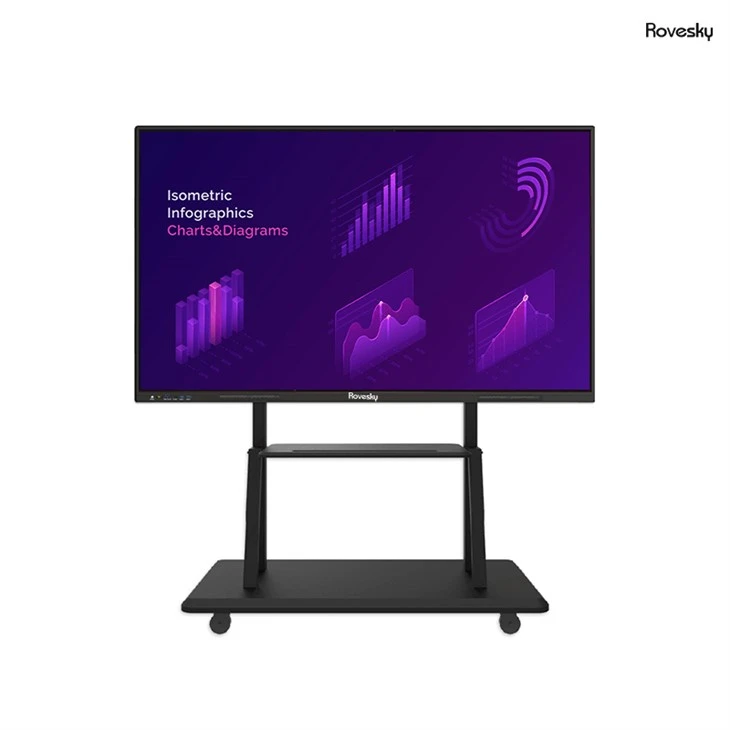

To collaborate, each user needs to connect their device to the smart board using the methods described above. Once everyone is connected, you can switch between different users' screens and share content as needed. Some smart boards also have built - in collaboration software that allows users to work together on the same document or project in real - time.
Troubleshooting
Sometimes, things don't go as planned when sharing content on a smart board. Here are some common issues and how to fix them:
- No signal: If you're not getting a signal on the smart board, check the cable connections. Make sure the cable is plugged in securely on both ends. If you're using a wireless connection, check the Wi - Fi or Bluetooth settings on both your device and the smart board.
- Poor image quality: If the image on the smart board looks blurry or distorted, check the resolution settings on your device. Make sure the resolution is set to match the smart board's native resolution. You can also try adjusting the focus and zoom on the smart board.
- Software issues: If you're having trouble with the smart board's software, try restarting the smart board and your device. You can also check for software updates and install them if available.
Conclusion
Sharing content on a smart board is a great way to enhance collaboration, engagement, and productivity. By following the steps outlined in this blog, you can easily share your content on the smart board and make the most of its features.
If you're interested in purchasing a smart board for your business, school, or organization, we're here to help. We offer a wide range of high - quality smart boards with different sizes and features to meet your needs. Whether you're looking for a 75 - inch or an 86 - inch smart board, we've got you covered.
If you have any questions or would like to discuss your specific requirements, please don't hesitate to get in touch. We're happy to provide you with more information and help you find the perfect smart board for your situation. Let's work together to take your collaboration to the next level!
References
- Smart Board User Manuals
- Online resources on smart board technology and content sharing