

How to connect my mobile TV to a bigger screen?
Connecting your mobile TV to a bigger screen can significantly enhance your viewing experience, whether you're enjoying movies, streaming shows, or playing games. As a mobile TV supplier, I understand the importance of seamless connectivity and the value it adds to your entertainment setup. In this blog post, I'll share some practical methods to connect your mobile TV to a larger screen, along with tips to ensure a smooth connection.
Understanding Your Mobile TV and Screen Compatibility
Before attempting to connect your mobile TV to a bigger screen, it's essential to understand the compatibility between your devices. Check the available ports on both your mobile TV and the larger screen. Common ports include HDMI, USB, Wi - Fi, and Bluetooth.
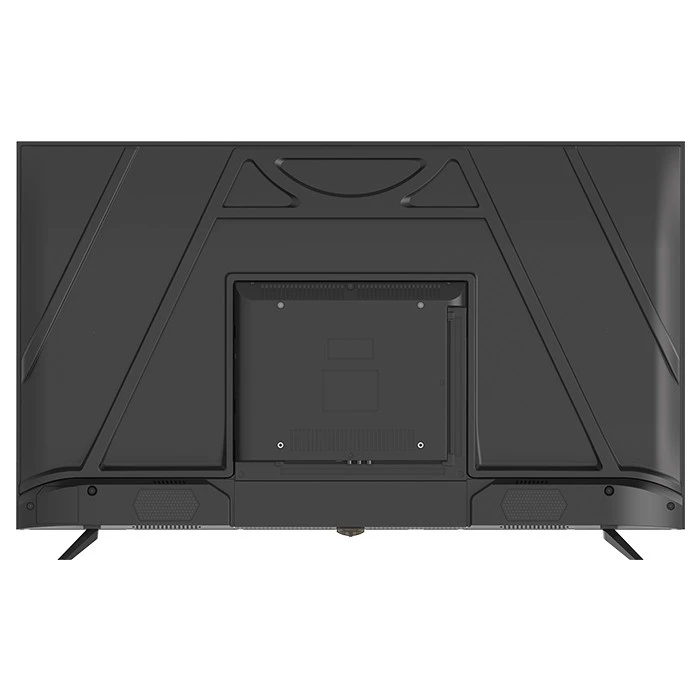
- HDMI: High - Definition Multimedia Interface (HDMI) is one of the most popular ways to connect devices as it supports high - definition video and audio transmission. Many modern mobile TVs and larger screens, such as the Rovesky 43 - Inch Smart Android TV, are equipped with HDMI ports.
- USB: Some mobile TVs and screens support USB connectivity, which can be used to transfer data or play media files. However, not all USB connections support video output, so make sure your devices are compatible.
- Wi - Fi: Wireless connectivity via Wi - Fi allows you to stream content from your mobile TV to a larger screen without the need for cables. This method is convenient and works well with smart TVs and screens that support screen mirroring or casting.
- Bluetooth: Bluetooth is mainly used for connecting audio devices, but some devices also support Bluetooth for screen mirroring. However, the range and quality of Bluetooth connections may be limited compared to Wi - Fi or HDMI.
Connecting via HDMI
Connecting your mobile TV to a bigger screen using an HDMI cable is a straightforward and reliable method. Here's how you can do it:
- Check the Ports: Ensure that both your mobile TV and the larger screen have HDMI ports. If your mobile TV has a micro - HDMI port, you'll need an appropriate adapter to connect it to a standard HDMI port on the screen.
- Connect the Cable: Plug one end of the HDMI cable into the HDMI port on your mobile TV and the other end into an available HDMI port on the larger screen.
- Select the Input Source: Use the remote control of the larger screen to select the corresponding HDMI input source. For example, if you connected the cable to HDMI 1, select "HDMI 1" on the screen's input menu.
- Adjust the Settings: Once the connection is established, you may need to adjust the display settings on your mobile TV to ensure the picture is properly scaled and oriented.
Screen Mirroring via Wi - Fi
Screen mirroring allows you to display the content from your mobile TV on a larger screen wirelessly. Here's how to set it up:
- Enable Screen Mirroring: On your mobile TV, look for the screen mirroring or casting option in the settings menu. This option may be called "Screen Mirroring", "Miracast", or "Smart View" depending on your device.
- Connect to the Same Wi - Fi Network: Make sure both your mobile TV and the larger screen are connected to the same Wi - Fi network. This is essential for the devices to communicate with each other.
- Search for the Screen: On your mobile TV, select the larger screen from the list of available devices in the screen mirroring menu. The screen may need to be in a discoverable mode for this to work.
- Pair the Devices: Follow the on - screen instructions to pair your mobile TV with the larger screen. Once paired, the content from your mobile TV will be mirrored on the screen.
Using a Wireless Display Adapter
If your larger screen doesn't support screen mirroring natively, you can use a wireless display adapter to achieve the same result. Here's how:
- Connect the Adapter: Plug the wireless display adapter into an HDMI port on the larger screen and connect it to a power source.
- Install the App: On your mobile TV, download and install the corresponding app for the wireless display adapter. This app is usually available on the device's app store.
- Connect to the Adapter: Open the app on your mobile TV and follow the instructions to connect it to the wireless display adapter. Once connected, the content from your mobile TV will be displayed on the larger screen.
Connecting a Mobile TV to a Gaming Monitor
If you want to connect your mobile TV to a gaming monitor, such as the Rovesky 32 - Inch Curved Gaming Monitor – 240Hz, the process is similar to connecting it to a TV. You can use an HDMI cable or screen mirroring to display the content from your mobile TV on the monitor.
- HDMI Connection: Follow the steps mentioned above for connecting via HDMI. Make sure to select the appropriate input source on the monitor.
- Screen Mirroring: If the monitor supports screen mirroring, enable it on the monitor and your mobile TV as described in the screen mirroring section.
Connecting a Portable Mobile TV
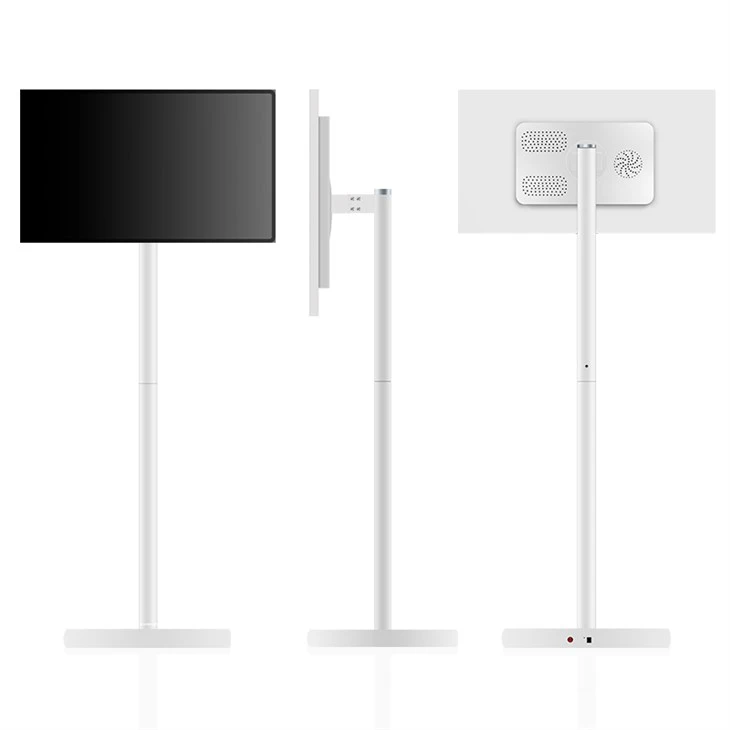
Portable mobile TVs, like the Rovesky 23.8 - Inch Stand By Me Smart Portable TV, offer flexibility and can be easily connected to a larger screen. You can use the same methods mentioned above, such as HDMI connection or screen mirroring, to connect it to a TV or monitor.
Troubleshooting Tips
If you encounter any issues while connecting your mobile TV to a bigger screen, here are some troubleshooting tips:
- Check the Connections: Make sure all cables are properly plugged in and there are no loose connections.
- Restart the Devices: Sometimes, simply restarting your mobile TV and the larger screen can resolve connectivity issues.
- Update the Software: Ensure that both your mobile TV and the larger screen have the latest software updates installed. Software updates often include bug fixes and improvements that can enhance connectivity.
- Check the Network: If you're using Wi - Fi for screen mirroring, make sure the Wi - Fi network is stable and there are no interference issues.
Conclusion
Connecting your mobile TV to a bigger screen can transform your entertainment experience. Whether you choose to use an HDMI cable, screen mirroring, or a wireless display adapter, the key is to ensure compatibility between your devices and follow the proper setup procedures. As a mobile TV supplier, I'm committed to providing high - quality products and helping you make the most of your entertainment setup.
If you're interested in purchasing our mobile TVs or have any questions about connectivity or other features, I encourage you to reach out to us for a detailed discussion. We're here to assist you in finding the best solutions for your needs.
References
- "HDMI: The Complete Guide." TechRadar.
- "How to Screen Mirror Your Phone to a TV." Android Central.
- "Wireless Display Adapters: A Buyer's Guide." PCMag.