

How to connect external devices to a 19inch industrial panel computer?
Hey there! As a supplier of 19 - inch industrial panel computers, I've had my fair share of experiences with folks looking to connect external devices to these bad boys. It can seem a bit daunting at first, but don't worry - I'm here to break it down for you in simple terms.
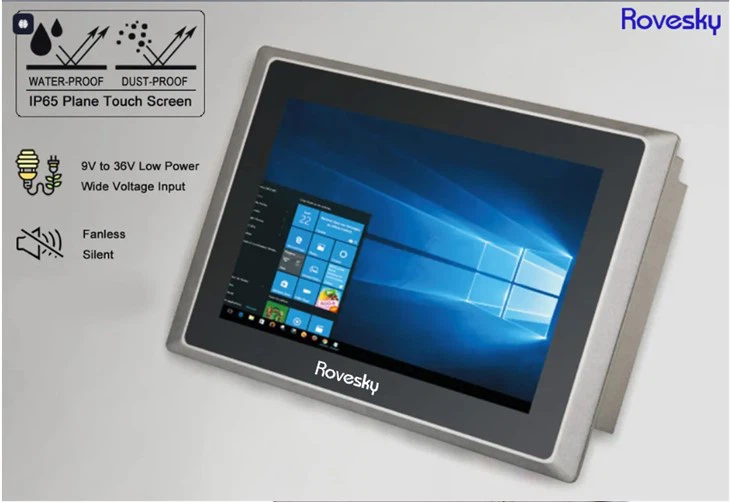
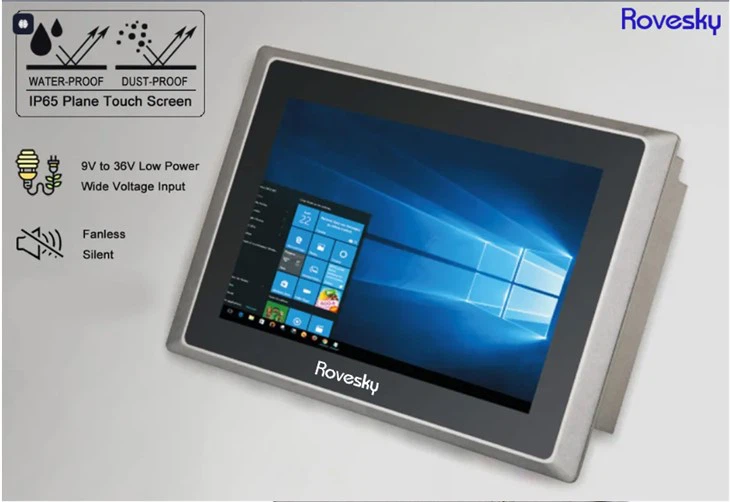
First off, let's talk about why you might want to connect external devices to your 19 - inch industrial panel computer. Well, these panel computers are great on their own, but sometimes you need that extra functionality. Maybe you want to use a barcode scanner in a warehouse setting, or perhaps you need to connect a high - resolution printer for detailed reports. Whatever the reason, knowing how to make these connections is key.
Understanding the Ports
The first step in connecting external devices is understanding the ports on your 19 - inch industrial panel computer. Most of these panel computers come with a variety of ports, each designed for a specific type of device.
The USB ports are probably the most versatile. You can use them to connect a wide range of devices, from keyboards and mice to external hard drives and flash drives. Just plug the USB connector of your device into an available USB port on the panel computer. It's usually plug - and - play, which means the computer should recognize the device automatically.
Ethernet ports are essential if you want to connect your panel computer to a network. Whether it's a local area network (LAN) in an office or a wide - area network (WAN) for remote access, the Ethernet port allows for high - speed data transfer. Simply connect an Ethernet cable from your router or network switch to the Ethernet port on the panel computer.
HDMI ports are great for connecting external displays. If you want to use a larger monitor or project your panel computer's screen onto a big screen for presentations, just plug an HDMI cable from the panel computer's HDMI port to the HDMI input on the external display.
Serial ports, also known as COM ports, are still used for some older or specialized devices. These ports use a serial communication protocol to transfer data. If you have a device like a legacy barcode scanner or a specific industrial sensor that uses a serial connection, you'll need to connect it to the serial port on the panel computer using a compatible cable.
Connecting Specific Devices
Let's take a look at how to connect some common external devices:
Keyboard and Mouse
Connecting a keyboard and mouse is super easy. Just plug the USB connectors of your keyboard and mouse into the USB ports on the panel computer. Once you've done that, you should be able to start using them right away. If your keyboard and mouse use a wireless connection, you'll need to plug in the wireless receiver into a USB port.
External Hard Drive
External hard drives are a great way to store extra data. To connect an external hard drive, plug its USB cable into a USB port on the panel computer. The computer will detect the hard drive, and you can then access it through the file explorer. You might need to format the hard drive if it's new or if it's not in a compatible file system.
Printer
Connecting a printer can be a bit more involved. First, make sure your printer is turned on and in a ready state. If it's a USB printer, plug the USB cable into a USB port on the panel computer. Then, you'll need to install the printer driver. You can usually download the driver from the printer manufacturer's website. Once the driver is installed, you should be able to print from your panel computer.
Barcode Scanner
Barcode scanners can be connected via USB or serial ports. If it's a USB barcode scanner, just plug it into a USB port. For serial barcode scanners, connect the serial cable to the serial port on the panel computer. You may need to configure the barcode scanner settings to work with your panel computer's software.
Troubleshooting
Sometimes, things don't go as smoothly as we'd like. Here are some common issues and how to fix them:
Device Not Recognized
If your device isn't recognized, first check the connection. Make sure the cable is properly plugged in and there are no loose connections. You can also try plugging the device into a different port. If that doesn't work, try restarting the panel computer and the device.
Communication Issues
If you're having trouble with data transfer between the panel computer and an external device, check the device settings. Make sure the device is configured to work with your panel computer's operating system. You may also need to update the device driver.
Power Issues
Some external devices require more power than the USB port can provide. If your device isn't working, it could be a power issue. Try using a powered USB hub or connecting the device to an external power source.
Why Choose Our 19 - inch Industrial Panel Computers
As an industrial panel computer supplier, we offer high - quality 19 - inch panel computers that are built to last. Our panel computers have a wide range of ports, making it easy to connect external devices. They're also designed to withstand harsh industrial environments, with features like shock and vibration resistance, dust and water protection.
If you're interested in our products, you can check out our website Industrial Panel PC Manufacturer | OEM ODM Factory China. We also offer 16 - inch industrial panel computers, which you can learn more about at 16'' inch Industrial Panel Computer Supplier.
If you have any questions or are interested in purchasing our industrial panel computers, feel free to reach out for a procurement discussion. We're here to help you find the best solution for your needs.
References
- General knowledge from years of experience as an industrial panel computer supplier.
- Manufacturer documentation for various external devices and industrial panel computers.