

How to connect a smart board to the Internet?
As a seasoned smart board supplier, I've witnessed firsthand the transformative power of these devices in various settings, from classrooms to boardrooms. One of the most common questions I receive is about how to connect a smart board to the Internet. In this blog post, I'll guide you through the process, sharing insights and tips along the way.

Understanding the Basics
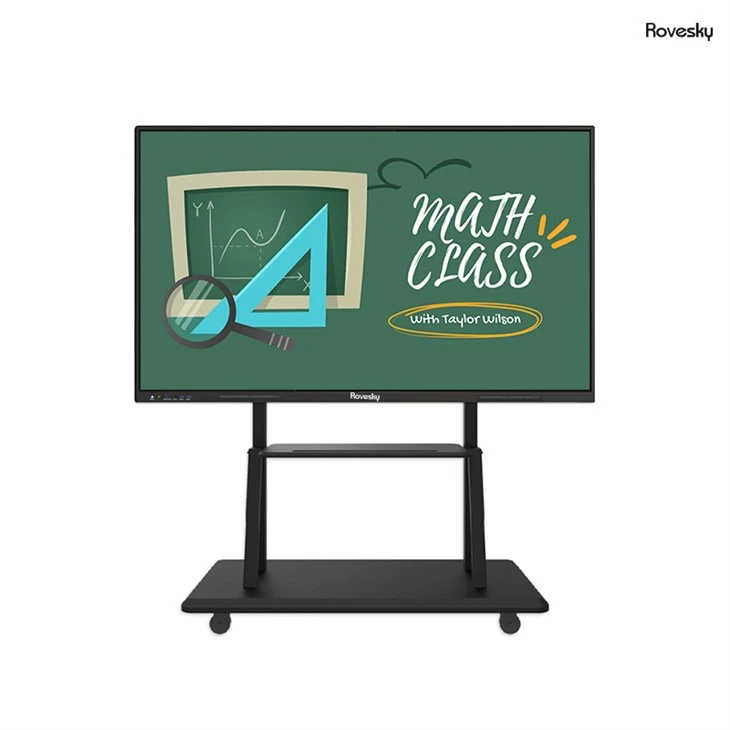
Before we dive into the connection process, it's essential to understand the different types of smart boards and their connectivity options. Smart boards come in various sizes and configurations, each with its own set of features and capabilities. For instance, the Rovesky 86-Inch 4K Interactive Smart Whiteboard and the Rovesky 75-Inch 4K Touchscreen Smart Whiteboard are two popular models known for their high-resolution displays and interactive features.
Most smart boards support both wired and wireless connectivity options. Wired connections typically involve using an Ethernet cable to connect the smart board directly to a router or network switch. Wireless connections, on the other hand, allow the smart board to connect to the Internet using Wi-Fi. The choice between wired and wireless connectivity depends on several factors, including the availability of network infrastructure, the distance between the smart board and the router, and the level of reliability required.
Wired Connection
Wired connections are generally faster and more reliable than wireless connections, making them ideal for environments where a stable Internet connection is crucial. Here's how to connect a smart board to the Internet using a wired connection:
- Locate the Ethernet Port: Most smart boards have an Ethernet port located on the back or side of the device. This port is used to connect the smart board to a network using an Ethernet cable.
- Connect the Ethernet Cable: Take one end of the Ethernet cable and plug it into the Ethernet port on the smart board. Then, take the other end of the cable and plug it into an available Ethernet port on your router or network switch.
- Configure the Network Settings: Once the smart board is connected to the network, you may need to configure the network settings to ensure that it can communicate with other devices on the network and access the Internet. To do this, navigate to the network settings menu on the smart board and select the option to connect to a wired network. Follow the on-screen instructions to enter the necessary network information, such as the IP address, subnet mask, and gateway.
Wireless Connection
Wireless connections offer greater flexibility and convenience, allowing you to place the smart board anywhere within range of your Wi-Fi network. Here's how to connect a smart board to the Internet using a wireless connection:
- Check the Wi-Fi Compatibility: Before attempting to connect the smart board to your Wi-Fi network, make sure that the smart board supports Wi-Fi connectivity and that it is compatible with your Wi-Fi router. You can usually find this information in the smart board's user manual or on the manufacturer's website.
- Turn on Wi-Fi on the Smart Board: Navigate to the settings menu on the smart board and select the option to turn on Wi-Fi. The smart board will then scan for available Wi-Fi networks.
- Select Your Wi-Fi Network: From the list of available Wi-Fi networks, select your home or office network. If your network is password-protected, you will need to enter the Wi-Fi password to connect.
- Connect to the Internet: Once the smart board is connected to your Wi-Fi network, it should automatically obtain an IP address from your router and be able to access the Internet. You can test the connection by opening a web browser on the smart board and visiting a website.
Troubleshooting
If you encounter any issues while connecting the smart board to the Internet, here are some troubleshooting tips to help you resolve the problem:
- Check the Physical Connections: Make sure that all cables are securely connected to the smart board and the router. Loose or damaged cables can cause connectivity issues.
- Restart the Devices: Sometimes, simply restarting the smart board, the router, and any other network devices can resolve connectivity issues. Turn off all devices, wait a few seconds, and then turn them back on.
- Update the Firmware: Outdated firmware can cause compatibility issues and performance problems. Check the manufacturer's website for the latest firmware updates for your smart board and follow the instructions to install them.
- Check the Network Settings: Make sure that the network settings on the smart board are configured correctly. Double-check the IP address, subnet mask, gateway, and DNS settings to ensure that they are accurate.
- Contact Technical Support: If you have tried all of the above steps and are still unable to connect the smart board to the Internet, contact the technical support team for your smart board or your Internet service provider for further assistance.
Conclusion
Connecting a smart board to the Internet is a relatively straightforward process that can greatly enhance the functionality and versatility of the device. Whether you choose to use a wired or wireless connection, following the steps outlined in this blog post will help you ensure a successful connection. By providing your smart board with access to the Internet, you can unlock a wide range of features and applications, including online collaboration tools, educational resources, and multimedia content.
If you're interested in purchasing a smart board for your school, office, or home, I encourage you to explore our range of products, including the Rovesky 86-Inch 4K Interactive Smart Whiteboard and the Rovesky 75-Inch 4K Touchscreen Smart Whiteboard. Our smart boards are designed to provide a seamless and intuitive user experience, with high-resolution displays, interactive touch technology, and advanced features that make them ideal for a variety of applications.
If you have any questions or would like to discuss your specific requirements, please don't hesitate to reach out to us. We're here to help you find the perfect smart board solution for your needs and ensure that you have a smooth and hassle-free experience.
References
- Smart Board User Manuals
- Wi-Fi Router User Manuals
- Internet Service Provider Documentation