

How to adjust the height of a gaming monitor?
Hey there, fellow gamers! As a supplier of top - notch gaming monitors, I've seen it all when it comes to setting up the perfect gaming rig. One of the most crucial yet often overlooked aspects is adjusting the height of your gaming monitor. It's not just about aesthetics; it has a huge impact on your gaming experience and even your health.
Let's first talk about why monitor height matters. When your monitor is at the wrong height, you might end up straining your neck, which can lead to discomfort and long - term health issues. If it's too low, you'll be looking down all the time, and if it's too high, you'll be craning your neck upwards. This can cause neck pain, headaches, and fatigue, all of which are the last things you want when you're in the middle of an intense gaming session.
On top of that, the right monitor height can enhance your visual experience. You want to have a clear, unobstructed view of the screen, so you don't miss any details in your games. Whether it's spotting an enemy in a first - person shooter or reading important in - game messages, having the monitor at the correct height can make a world of difference.
Now, let's get into the nitty - gritty of how to adjust the height of your gaming monitor.
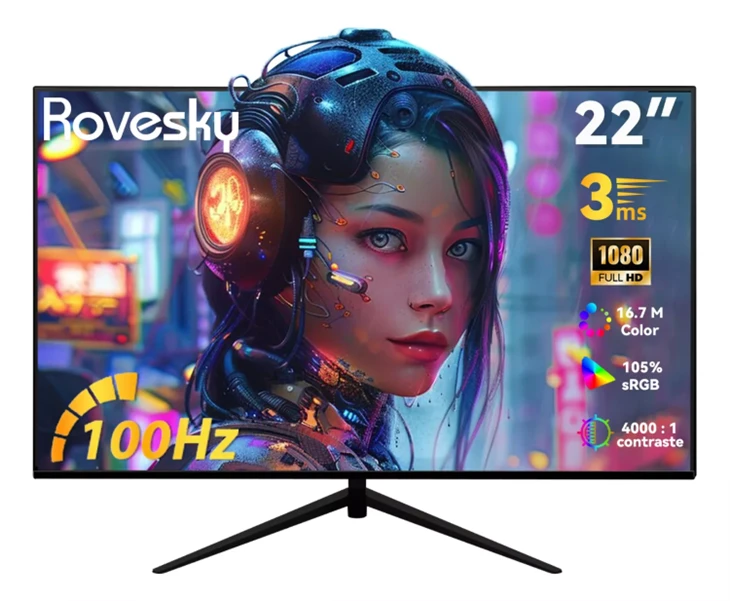
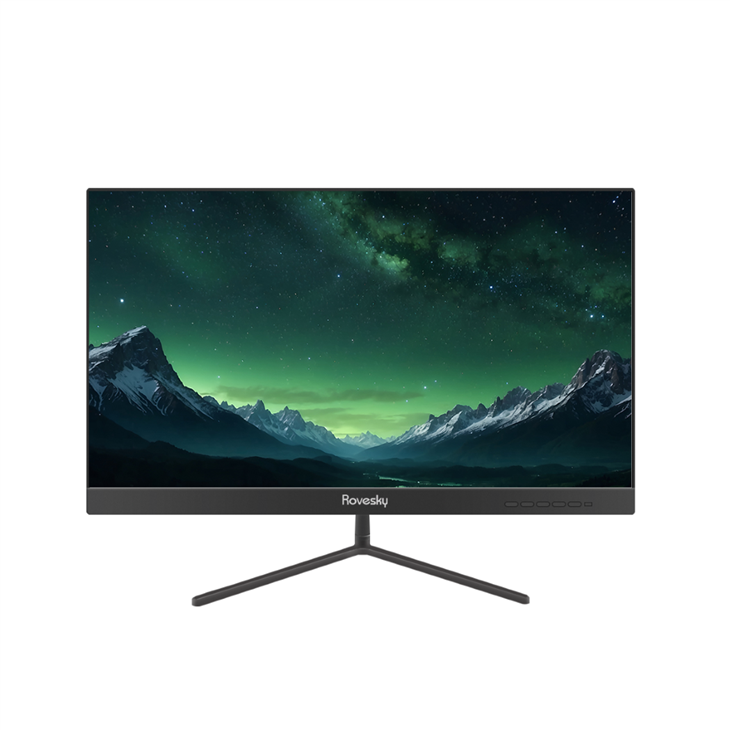
Step 1: Determine the Ideal Height
The general rule of thumb is that the center of your monitor should be at or slightly below eye level when you're sitting in your gaming chair. To figure this out, sit in your chair as you normally would when gaming. Then, close your eyes and relax your neck. When you open your eyes, the point where your line of sight naturally falls is a good indication of where the center of your monitor should be.
Step 2: Check Your Monitor's Adjustability
Not all monitors are created equal when it comes to height adjustment. Some of our monitors, like the Rovesky 32 - Inch Curved Gaming Monitor – 240Hz, come with built - in height adjustment features. These monitors usually have a stand that can be raised or lowered easily. Just look for a lever or a button on the back or side of the stand. Press or pull it, and you can move the monitor up or down to your desired height.
If your monitor doesn't have a built - in height - adjustable stand, don't worry. You can use a monitor riser. There are all sorts of monitor risers available on the market, from simple plastic ones to more elaborate, adjustable ones. A monitor riser can lift your monitor to the right height and also improve cable management.
Step 3: Make the Adjustment
Once you've determined the ideal height and know how to adjust your monitor, it's time to make the change. If you're using a monitor with a built - in adjustable stand, gently hold the monitor by the sides and move it up or down while operating the adjustment mechanism. Make sure to do it slowly and steadily to avoid any sudden movements that could damage the monitor.
If you're using a monitor riser, first place the riser on your desk in a stable position. Then, carefully lift your monitor and place it on top of the riser. Double - check that it's centered and stable.
Step 4: Test and Fine - Tune
After making the adjustment, sit back in your chair and take a look at the screen. Does it feel comfortable? Can you see everything clearly without having to strain your neck? If not, make small adjustments until you find the perfect height.
Special Considerations for Different Monitor Sizes
- Smaller Monitors: Monitors like the Rovesky 21.45 - Inch Full HD LCD Monitor are generally easier to adjust. Since they're lighter, you can be more flexible with how you position them. You might even be able to use a simple stack of books as a makeshift riser if you don't have a proper one.
- Larger and Curved Monitors: Larger monitors, such as the Rovesky 27 - Inch Curved Gaming Monitor, require a bit more care. Because of their size and weight, it's important to make sure they're securely mounted or placed on a stable stand or riser. Also, when adjusting the height, be extra careful not to tip them over.
In addition to height adjustment, you should also consider other factors like the angle and tilt of your monitor. You want the screen to be perpendicular to your line of sight to reduce glare and reflections. Most monitors allow you to adjust the tilt (tilting the screen forward or backward) and sometimes the swivel (rotating the screen left or right).
To sum it up, adjusting the height of your gaming monitor is a simple yet important step in creating the perfect gaming setup. It can improve your comfort, enhance your visual experience, and even prevent long - term health problems.
If you're in the market for a new gaming monitor or need more advice on setting up your gaming rig, we're here to help. We offer a wide range of high - quality gaming monitors with various features and sizes to suit your needs. Whether you're a casual gamer or a professional esports player, we've got you covered.
If you're interested in purchasing our gaming monitors or have any questions, feel free to reach out for a procurement discussion. We're eager to work with you and help you find the best monitor for your gaming adventures.
References
- Ergonomics for Computer Workstations, Occupational Safety and Health Administration
- Guidelines for Optimal Computer Monitor Placement, American Chiropractic Association