

How to adjust the display settings of a 27 - inch all - in - one desktop computer?
Hey there! As a supplier of 27 - inch all - in - one desktop computers, I know how important it is to get those display settings just right. Whether you're using your computer for work, gaming, or just binge - watching your favorite shows, the display can make or break the experience. So, let's dive into how you can adjust the display settings of your 27 - inch all - in - one desktop computer.
1. Resolution
The first thing you'll want to look at is the resolution. Resolution refers to the number of pixels on the screen, and it's usually expressed as width x height (e.g., 1920x1080). A higher resolution means more pixels, which generally results in a sharper and clearer image.
On most 27 - inch all - in - one desktops, the native resolution is pretty high, like 2560x1440 or even 4K (3840x2160). To adjust the resolution, right - click on an empty space on your desktop and select "Display settings" (this might vary a bit depending on your operating system). In the display settings window, look for the "Resolution" dropdown menu.
If you're using your computer for general tasks like web browsing, word processing, and watching videos, the native resolution is usually the best choice. But if you find the text and icons too small, you can try lowering the resolution a bit. Just keep in mind that lowering the resolution might make the image look a bit blurry.
2. Brightness and Contrast
Brightness and contrast are crucial for a comfortable viewing experience. Brightness determines how light or dark the screen is, while contrast refers to the difference between the lightest and darkest parts of the image.
Most 27 - inch all - in - one desktops come with built - in controls for brightness and contrast. You can usually find these controls on the side or bottom of the monitor. Look for buttons labeled "Brightness" and "Contrast" and use them to adjust the settings.
If you're in a well - lit room, you might want to increase the brightness to make the screen more visible. On the other hand, if you're in a dark room, lowering the brightness can prevent eye strain. As for contrast, a good rule of thumb is to aim for a setting where you can clearly see all the details in both the light and dark areas of the image.
3. Color Settings
Color settings can have a big impact on how your images and videos look. Most monitors allow you to adjust the color temperature, saturation, and hue.

Color temperature is measured in Kelvin (K). A lower color temperature (around 2700K - 3000K) gives the screen a warm, yellowish tint, which is great for reading and relaxing. A higher color temperature (around 6500K - 9300K) gives a cooler, bluish tint, which is often preferred for photo and video editing.
To adjust the color temperature, go to the display settings and look for the "Color" or "Color temperature" option. You can usually choose from presets like "Warm," "Cool," or "Standard," or you can adjust the temperature manually.
Saturation refers to the intensity of the colors. If you want your colors to look more vivid, you can increase the saturation. But be careful not to overdo it, as too much saturation can make the colors look artificial.
Hue is the actual color itself. You can use the hue adjustment to shift the colors slightly. For example, you might want to make the greens a bit more yellow or the blues a bit more purple.
4. Orientation
Sometimes, you might want to change the orientation of your screen. For example, if you're working on a document with a lot of text, you might find it more comfortable to use the portrait orientation.
To change the orientation, go to the display settings and look for the "Display orientation" dropdown menu. You can choose between "Landscape," "Portrait," "Landscape (flipped)," and "Portrait (flipped)."
5. Multiple Displays
If you have multiple 27 - inch all - in - one desktops or other monitors connected to your computer, you can configure them to work together. This is great for increasing your productivity, as you can have different applications open on each screen.
To set up multiple displays, go to the display settings and look for the "Multiple displays" section. You can choose to extend your desktop across multiple monitors, duplicate the same image on all monitors, or use only one monitor at a time.
Why Choose Our 27 - Inch All - in - One Desktop Computers?
Now that you know how to adjust the display settings, let me tell you a bit about our 27 - inch all - in - one desktop computers. We're a direct factory supplier, which means you can get our 27 inch All in one Computer direct Factory Price. Our computers come with high - quality displays that are easy to adjust and offer a great viewing experience.
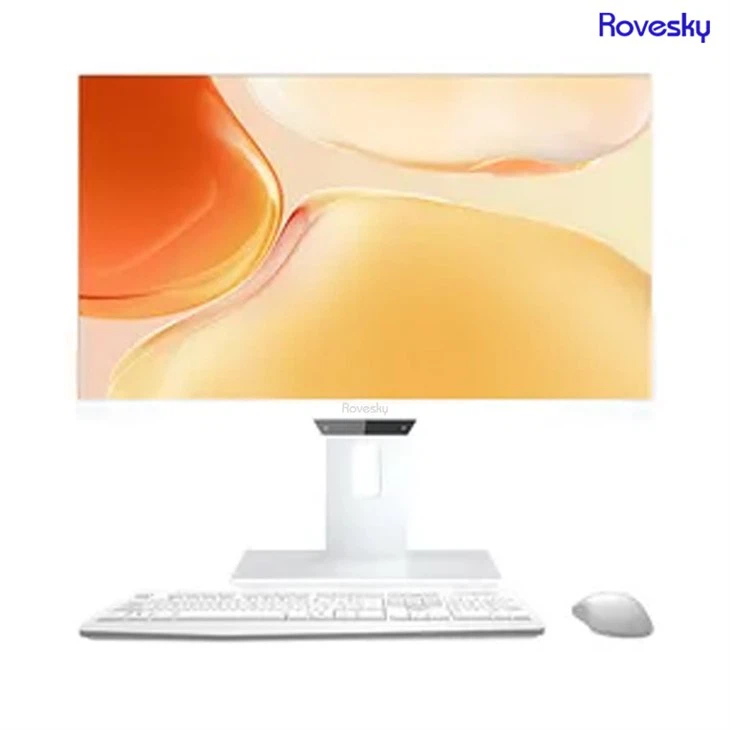
In addition to our 27 - inch models, we also have the Rovesky 24 - Inch All - in - One Portable Desktop PC for those who need a more portable option.
If you're interested in purchasing our all - in - one desktop computers or have any questions about the display settings or other features, feel free to reach out. We're here to help you get the most out of your computer.
Conclusion
Adjusting the display settings of your 27 - inch all - in - one desktop computer is not as complicated as it might seem. By following these simple steps, you can customize the display to suit your needs and preferences. Whether you're a professional photographer, a gamer, or just an everyday user, getting the display settings right can greatly enhance your computing experience.
So, what are you waiting for? Go ahead and start adjusting those settings, and if you're in the market for a new 27 - inch all - in - one desktop computer, don't hesitate to contact us for more information.
References
- Common knowledge from the field of computer hardware and display technology.
- Experience from working as a 27 - inch all - in - one desktop computer supplier.