

How does a Wi - Fi digital picture frame connect to the network?
Hey there! As a supplier of digital picture frames, I often get asked about how our awesome Wi-Fi digital picture frames connect to the network. So, let's dive right into it and break down the process step by step.
First things first, before you even start the connection process, make sure your Wi-Fi digital picture frame is set up properly. This means finding a good spot for it, powering it on, and making sure it's all charged up. Our 15.6-Inch WiFi Digital Picture Frame and 10.1 Inch WiFi Digital Photo Frame Rechargeable are super easy to set up physically - just place them where you want, plug them in (or let the rechargeable battery do its thing), and you're good to go.
Once your frame is powered up, it's time to start looking for a Wi-Fi network to connect to. Most of our Wi-Fi digital picture frames have a built - in Wi-Fi module that can detect available networks in the area. You'll usually find a network settings option in the frame's menu. On 7-Inch Digital Photo Frame with Remote, you can use the remote to navigate to the settings and start the network search.
When you open the network settings, the frame will scan for nearby Wi-Fi networks. You'll see a list of available networks on the screen. Select the network you want to connect to. This is usually your home Wi-Fi network. If your network is password - protected (which it should be for security reasons), you'll need to enter the password.
Entering the password can be a bit of a pain, but our frames are designed to make it as easy as possible. Some of them have a virtual keyboard that pops up on the screen. You can use the frame's controls or the remote to navigate the keyboard and type in the password. It might take a little time to get used to, but once you get the hang of it, it's a breeze.
After you've entered the password, hit the connect button. Now, the frame will try to establish a connection with the Wi-Fi network. This might take a few seconds to a minute or two. You'll usually see a status indicator on the screen that shows whether the connection is being established, connected, or if there's an error.
If the connection fails, don't panic. There are a few things you can check. First, make sure you entered the correct password. It's easy to make a typo, so double - check. Also, make sure your Wi-Fi network is working properly. You can try connecting other devices, like your phone or laptop, to the same network to see if they have any issues.
Another possible reason for the connection failure could be the distance between the frame and the Wi-Fi router. Wi-Fi signals can weaken over distance, so if your frame is too far away from the router, it might not be able to connect. Try moving the frame closer to the router or consider using a Wi-Fi extender to boost the signal.
Once the frame is successfully connected to the Wi-Fi network, you're ready to start enjoying all the cool features. You can use the frame to access online photo storage services, like Google Photos or Dropbox. Just log in to your account on the frame, and you'll be able to view all your photos right on the frame's screen.
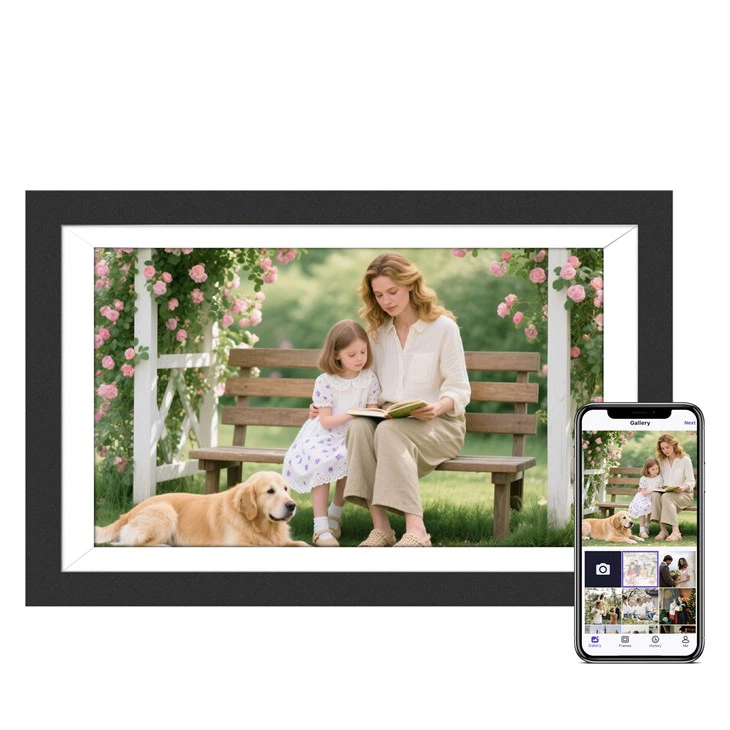
You can also share photos with your frame from other devices. For example, if you have a smartphone or tablet, you can download our dedicated app. The app allows you to send photos directly to the frame over the Wi-Fi network. It's a great way to keep your frame updated with the latest memories.
Some of our frames also support social media integration. You can connect your Instagram or Facebook account to the frame, and it will display your latest posts and photos. This is a really fun way to show off your social media life to your friends and family.
In addition to these features, a Wi-Fi connection also enables software updates for the frame. We're constantly working on improving our frames, adding new features, and fixing bugs. When a new software update is available, your frame will be able to download and install it automatically over the Wi-Fi network. This ensures that your frame always has the latest and greatest features.
So, there you have it - a detailed guide on how our Wi-Fi digital picture frames connect to the network. It might seem a bit complicated at first, but once you go through the process a couple of times, it becomes really simple.
If you're interested in purchasing our digital picture frames or have any questions about the connection process or our products in general, we'd love to hear from you. Just reach out to us, and we'll be more than happy to assist you with your purchase and answer all your queries. Whether you're looking for a large - sized frame like the 15.6-Inch WiFi Digital Picture Frame, a portable rechargeable one like the 10.1 Inch WiFi Digital Photo Frame Rechargeable, or a classic smaller one with a remote like the 7-Inch Digital Photo Frame with Remote, we have the perfect option for you.

References
- General knowledge of Wi-Fi technology and digital picture frame functionality.