

How do I connect external devices like a webcam to a smart board for the office?
In today's digital - age office environment, the smart board has become an indispensable tool for enhancing communication, collaboration, and productivity. As a supplier of smart boards for offices, I often receive inquiries from clients about how to connect external devices, such as webcams, to these smart boards. In this blog post, I'll share a comprehensive guide on achieving this connection, ensuring that your office setup is both efficient and high - functioning.
Understanding the Basics of Smart Boards and Webcams
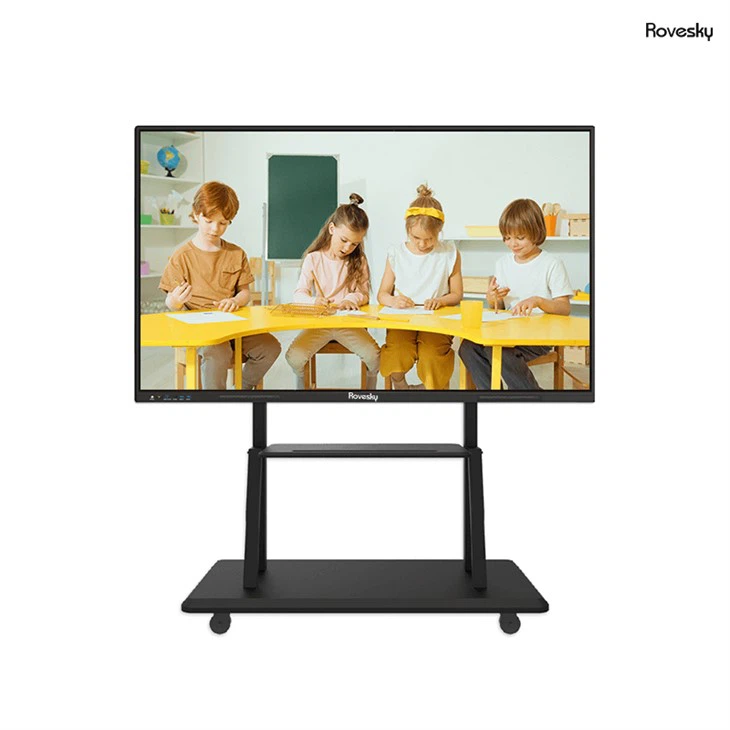
Before delving into the connection process, it's essential to understand the fundamental features of smart boards and webcams. Smart boards for offices, like our 55'' inch Smart Board for Office,4k Uhd Touch Screen Digital Whiteboard, are designed to provide interactive and engaging presentations, meetings, and training sessions. They usually come equipped with high - resolution displays, touch - screen functionality, and multiple input ports for connecting various devices.
Webcams, on the other hand, are external video - capturing devices that can be used for video conferencing, recording presentations, or live streaming. They offer a range of features, including different resolutions, frame rates, and field - of - view options, which can significantly enhance the visual experience during online meetings and collaborations.
Preparing Your Smart Board and Webcam
The first step in connecting a webcam to your smart board is to ensure that both devices are properly prepared.
Smart Board Preparation
- Power On: Start by powering on your smart board and allowing it to boot up completely. Make sure it is connected to a stable power source and that all the necessary software and drivers are up - to - date.
- Check Input Ports: Identify the available input ports on your smart board. Common ports include USB, HDMI, and DisplayPort. The type of port you'll use to connect the webcam depends on the webcam's output interface.
Webcam Preparation
- Inspect the Webcam: Examine the webcam for any physical damage and ensure that it is in good working condition. Check the cable length and the type of connector it has.
- Install Drivers (if necessary): Some webcams require specific drivers to function correctly. Check the manufacturer's website for your webcam model and download the latest drivers. Install them on your smart board following the provided instructions.
Connecting the Webcam to the Smart Board
There are two primary methods for connecting a webcam to a smart board: using a USB connection and using an HDMI connection.
USB Connection
- Locate the USB Port: Find an available USB port on your smart board. Most modern smart boards have multiple USB ports, which can be used to connect various devices.
- Connect the Webcam: Plug the USB cable from the webcam into the USB port on the smart board. Once connected, the smart board should automatically detect the webcam.
- Configure the Settings: After the webcam is detected, you may need to configure the settings. On the smart board's operating system, go to the camera settings or the video conferencing application settings and select the connected webcam as the video source.
HDMI Connection
- Check Compatibility: Ensure that your webcam has an HDMI output and that your smart board has an HDMI input. Not all webcams support HDMI output, so this method may not be applicable to all models.
- Connect the HDMI Cable: Connect one end of the HDMI cable to the HDMI output of the webcam and the other end to the HDMI input of the smart board.
- Select the Input Source: On the smart board, use the input source button or the on - screen menu to select the HDMI input corresponding to the connected webcam.
Testing the Webcam Connection
Once the webcam is connected, it's crucial to test the connection to ensure that it is working correctly.

- Open a Video Application: Launch a video conferencing application, such as Zoom, Microsoft Teams, or Google Meet. Log in to your account and navigate to the settings to check the video source. Make sure the connected webcam is selected.
- Check the Video Quality: Start a test call or a recording to check the video quality. Adjust the webcam's position, focus, and settings as needed to achieve the best possible image.
- Audio Testing: If your webcam has a built - in microphone, test the audio as well. Speak into the microphone and check if the sound is being picked up clearly during the test call.
Troubleshooting Common Issues
Even with proper preparation and connection, you may encounter some issues when connecting a webcam to a smart board. Here are some common problems and their solutions:
Webcam Not Detected
- Check the Connection: Ensure that the webcam is securely connected to the smart board. Try unplugging and plugging in the cable again.
- Update Drivers: If the webcam is not detected, it may be due to outdated drivers. Go to the manufacturer's website and download the latest drivers for your webcam model.
- Try a Different Port: If one USB or HDMI port is not working, try connecting the webcam to a different port on the smart board.
Poor Video Quality
- Adjust the Focus: Many webcams have a manual focus ring. Turn the ring to adjust the focus until the image is clear.
- Check the Lighting: Poor lighting can significantly affect video quality. Ensure that the area where the webcam is placed is well - lit. You can use additional lighting sources, such as softbox lights or ring lights, to improve the lighting conditions.
- Reduce Bandwidth Usage: If you're experiencing lag or low - quality video during a video call, close any other bandwidth - intensive applications running on the smart board.
Benefits of Connecting a Webcam to a Smart Board
Connecting a webcam to a smart board in the office offers several benefits:
- Enhanced Collaboration: Webcams enable face - to - face communication during remote meetings, making it easier for team members to interact and collaborate effectively.
- Improved Presentations: With a webcam, you can record presentations and share them with colleagues or clients. You can also use the webcam for live streaming presentations, reaching a wider audience.
- Training and Education: Webcams are valuable tools for training and education purposes. Trainers can use them to conduct online training sessions, and employees can participate in these sessions from anywhere.
Conclusion
Connecting a webcam to a smart board for the office is a relatively straightforward process that can significantly enhance the functionality and usability of your office setup. By following the steps outlined in this guide, you can ensure a successful connection and enjoy the benefits of seamless video communication and collaboration.
If you're interested in purchasing a high - quality smart board for your office or have any questions about connecting external devices, we're here to help. Contact us to start a procurement discussion, and let us assist you in finding the perfect solution for your office needs.
References
- Manufacturer's manuals for smart boards and webcams
- Online resources on office technology and device connectivity