

Can I connect my laptop to a smart board for the office?
Hey there! As a supplier of smart boards for the office, I often get asked, "Can I connect my laptop to a smart board for the office?" Well, the short answer is yes, you totally can! In this blog, I'll break down how it all works, the benefits, and some tips to make the connection smooth as butter.

Why Connect Your Laptop to a Smart Board?
First off, let's talk about why you'd want to connect your laptop to a smart board in the office. Picture this: you're in a meeting, and you've got all these awesome presentations, spreadsheets, and videos on your laptop. By connecting it to the smart board, you can share all that content with your colleagues on a big, beautiful screen. It makes your presentations more engaging and easier for everyone to see and follow.
Another great thing is collaboration. With a laptop connected to the smart board, you can annotate directly on your documents, draw diagrams, and make real - time changes. It's like having a giant interactive whiteboard that's connected to all your digital resources.
How to Connect Your Laptop to a Smart Board
Now, let's get into the nitty - gritty of how to make the connection. There are a few different ways to do it, and the method you choose depends on the ports available on your laptop and the smart board.
Using an HDMI Cable
This is one of the most common and straightforward methods. Most laptops these days come with an HDMI port, and so do many smart boards. All you need to do is grab an HDMI cable, plug one end into your laptop's HDMI port, and the other end into the smart board's HDMI port. Once you've done that, switch the input source on the smart board to the HDMI channel you've plugged into. Your laptop screen should then be mirrored on the smart board.
Using a DisplayPort Cable
If your laptop has a DisplayPort instead of an HDMI port, you can use a DisplayPort cable. Similar to the HDMI method, plug one end into your laptop's DisplayPort and the other end into the corresponding port on the smart board. Then, select the appropriate input source on the smart board.
Wireless Connection
Some smart boards support wireless connections, which can be super convenient. There are a few ways to achieve this. One option is to use Wi - Fi Direct. Many laptops and smart boards have this feature. You'll need to enable Wi - Fi Direct on both devices, pair them, and then you can share your screen wirelessly.
Another way is through Miracast. If your laptop and smart board support Miracast, you can use it to mirror your screen wirelessly. Just go to your laptop's settings, find the "Connect" option, and select your smart board from the list of available devices.
Compatibility Considerations
Before you start connecting your laptop to the smart board, it's important to check for compatibility. Not all laptops and smart boards are created equal, and there are a few things to keep in mind.
Resolution
Make sure that the resolution of your laptop's screen is compatible with the smart board. If the resolutions don't match, you might end up with a distorted or blurry image on the smart board. You can usually adjust the resolution settings on your laptop to match the smart board's native resolution.
Operating System
The operating system on your laptop can also affect the connection. For example, Windows, macOS, and Linux all have different ways of handling screen mirroring and external displays. Make sure that your smart board is compatible with your laptop's operating system.
Benefits of Using a Smart Board in the Office
As a supplier of smart boards for the office, I've seen firsthand the many benefits they offer.
Enhanced Productivity
When you can easily connect your laptop to a smart board, it streamlines your workflow. You can quickly share information, collaborate on projects, and make decisions faster. No more fumbling around with small screens or trying to project a blurry image from an old projector.
Improved Collaboration
Smart boards make collaboration a breeze. Team members can gather around the board, annotate on documents, and contribute ideas in real - time. It's like having a virtual brainstorming session that everyone can actively participate in.
Cost - Effective
Compared to traditional projectors and whiteboards, smart boards are a cost - effective solution in the long run. They require less maintenance, have a longer lifespan, and offer more features.
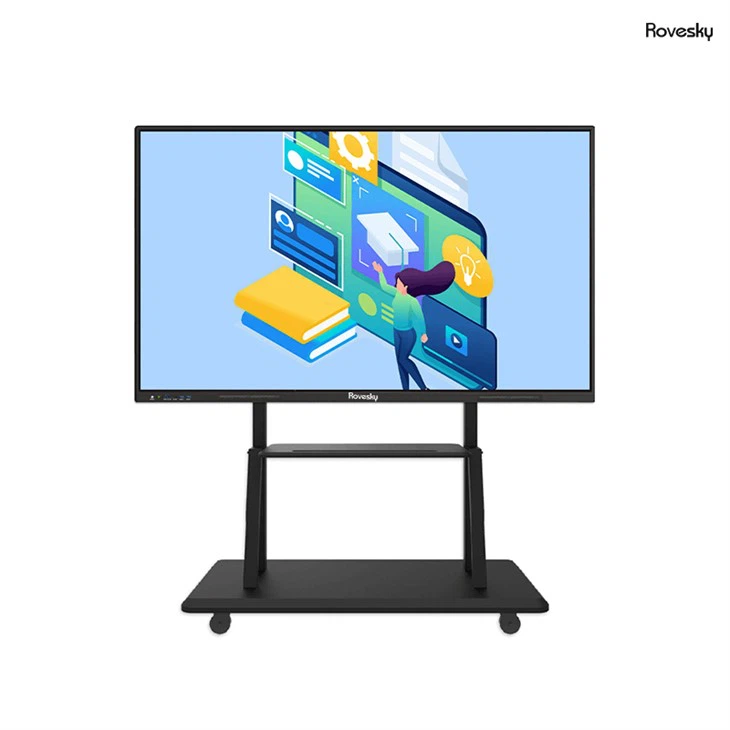
Recommended Smart Board: Rovesky 55 - Inch 4K Smart Digital Whiteboard
If you're in the market for a high - quality smart board for your office, I highly recommend the Rovesky 55 - Inch 4K Smart Digital Whiteboard. This smart board offers stunning 4K resolution, which means crystal - clear images and videos. It's easy to connect your laptop to, whether you're using an HDMI cable or a wireless connection.
The Rovesky smart board also comes with a range of useful features, such as multi - touch support, which allows multiple people to interact with the board at the same time. It's perfect for group meetings and collaborative projects.
Tips for a Smooth Connection
Here are some tips to ensure that your laptop connects to the smart board smoothly:
- Update Your Drivers: Make sure that your laptop's graphics drivers are up to date. Outdated drivers can cause connection issues and display problems.
- Test the Connection Beforehand: If you're using the smart board for an important presentation or meeting, test the connection in advance. This way, you can fix any issues before they become a problem.
- Use the Right Cables: Invest in high - quality cables. Cheap cables can sometimes cause signal loss or other issues.
Conclusion
So, to answer the question, "Can I connect my laptop to a smart board for the office?" Yes, you can, and it's a great idea! Whether you're looking to enhance your presentations, improve collaboration, or boost productivity, connecting your laptop to a smart board is a game - changer.
If you're interested in purchasing a smart board for your office, I'd love to chat with you. We offer a wide range of smart boards to suit different needs and budgets. Just reach out, and we can discuss your requirements and find the perfect smart board for your office.
References
- "Smart Board Technology: A Comprehensive Guide" - Tech Insights Magazine
- "Connecting Laptops to External Displays" - Laptop User's Handbook